How to manage an event as a team (without sharing your password)
Safara One team ·
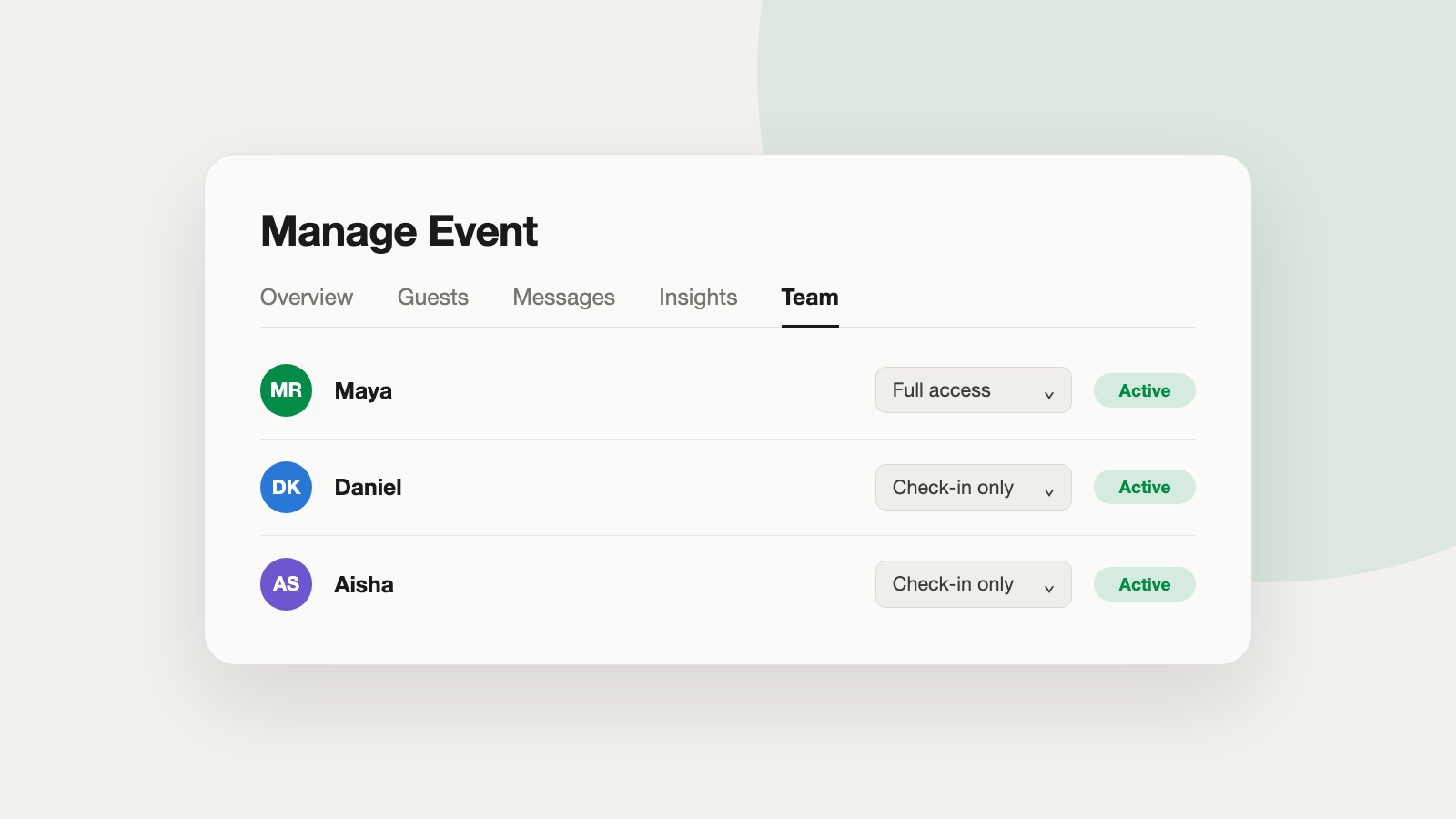
Running an event alone works until the day you're leading the room and checking tickets at the same moment. Most organizers fix this by handing a helper their phone or their password. There's a better way: give each person access to the one event, with only what they need. Here's how to split the work, and how to set it up on Safara One.
Why you shouldn't share your password
Sharing a login feels quick, but it gives away far more than one job:
- It opens everything. Your helper gets all your events, your payout settings and your profile, not just Saturday's workshop.
- You can't tell who did what. If a ticket price changes, everything looks like it came from you.
- It's hard to undo. To remove someone, you have to change your password and sign in again on every device.
Giving people their own access solves all three. Everyone signs in as themselves, and you can take access away in seconds.
Decide who does what
Before you invite anyone, write down the jobs. For a small event there are usually only two kinds of help: someone who shares the planning, and someone who looks after the door.
| Person | Their job | Access to give |
|---|---|---|
| Co-host or event manager | Updates details, tickets and discounts, and writes to guests | Full access |
| Door volunteer | Scans tickets and finds guests on the list | Check-in only |
| Friend helping for one night | Covers the door while you greet people | Check-in only |
When you're not sure, start with Check-in only. You can raise someone's access in a few seconds if they need more.
What each access level can do
On Safara One, an event can have up to 5 team members, and each one gets one of two levels. Access is for that event only. Someone on your team for one event can't see your others. As the owner, you can do everything in this table.
| Task | Full access | Check-in only |
|---|---|---|
| See guests | Yes | Names only |
| Check guests in | Yes | Yes |
| Edit event, tickets, discounts | Yes | No |
| Publish the event | Yes | No |
| Message ticket holders | Yes | No |
| Invite guests with free tickets | Yes | No |
| See tickets sold, page views | Yes | No |
| See revenue | No | No |
| Change the team | No | No |
| Payouts and Stripe | No | No |
Full access includes ticket prices and discount codes, and that money is yours. Give it to people you'd trust with your event page. It also lets them send complimentary tickets to VIPs and family.
How to add someone to your team
- Go to Dashboard → Events, tap your event, then Manage Event.
- Open the Team tab. On a phone it's the last tab, so tap the arrow beside the tabs to reach it.
- Enter their email, choose Full access or Check-in only, and tap Send invite.
- They open the link in the email and accept. The link works for 7 days.
They need to log in with the same email you invited. If they don't have an account yet, they can create one from the link, and it's free. Invite people a few days before the event, so nobody is looking for an email at the door.
Once they accept, your event appears in their Dashboard → Events with a Team tag. If they also bought a ticket, it shows Team · Attending on one card, and they can open their ticket and manage the event from the same place.
Stay in the loop on changes
When several people can edit an event, you need to know what changed. Each time someone saves a change, you get an email about a minute later with the event's latest details and who made the change. That covers the date, location, description, rules, ticket prices and quantities, and the discount code. Saves made close together arrive as one email.
Only you get this email, and you don't have to do anything with it. It's there so a change never takes you by surprise. If you see something you didn't expect, ask your team member, then fix it from Edit event.
Your money stays with you
A team member can never receive your ticket money. Every sale goes to your Stripe account, whoever edited the event, and it's your setup that decides whether paid tickets can go on sale. Team members don't need a Stripe account. If yours isn't finished, they'll see a message asking you to complete it. Our guide to how organizers get paid explains the setup.
Your sales don't appear in their Dashboard Finance page either, and they won't see revenue in the event's Insights tab. They can see how many tickets have sold, which is what they need to do their job.
Agree on the rules before event day
A short chat prevents most problems. Settle these three things early:
- Who sends the message. Each event includes one message to ticket holders, and the team shares it. If your co-host sends it on Monday, nobody can send another on Friday. Decide who sends it and when. Our guide to reducing no-shows explains why the day before works best. Guests see it from you, the organizer, even when a team member writes it.
- Who changes prices. Agree that price and discount changes go through one person.
- Who's on the door, and when. Give each person a time, even if it's only "the first 20 minutes".
Set up the door
Check-in staff open the event from Dashboard → Events and go straight to the guest list. They tap Check in guest to scan with their phone's camera or type a code, or use Check in beside a guest's name. There's nothing to install. Our guide to QR code check-in covers the rest of the door plan.
- Test it first. Ask each person to open the scanner once before guests arrive, so they can allow camera access in their browser.
- Use more than one phone for a bigger event. Everyone can scan at once. Each ticket checks in only once, however many people are scanning.
- Mind the event. If a helper is on the team for two of your events, a ticket for the wrong one is refused with a clear message, and the ticket stays unused.
After the event, tidy up
Check-in closes when an event is cancelled, and the day after it ends at the venue. Editing closes at the same point. You can remove team members from the Team tab whenever you like, and they lose access straight away. Any ticket they bought stays valid.
Changing someone's role is just as simple. Pick the new level from the dropdown on their row, confirm it, and it applies immediately.
Questions
Does adding a team cost anything?
No. Teams are included, and your pricing stays the same.
How many people can be on a team?
Up to 5 per event, not counting you. Invites that haven't been accepted yet use a place too.
What if an invite expires?
Invite the same email again from the Team tab, and they'll get a new link.
Can a team member create events under my name?
No. Team access is for your event only. Any event they create belongs to them, with their own payouts.
Can a team member cancel or delete my event?
No. Team members can't cancel or delete an event, and they can't change the team. Only you can add or remove people.
You can read the same steps in the guide under Share an event with your team.