QR code check-in: how to run the door at a small event
Safara One team ·
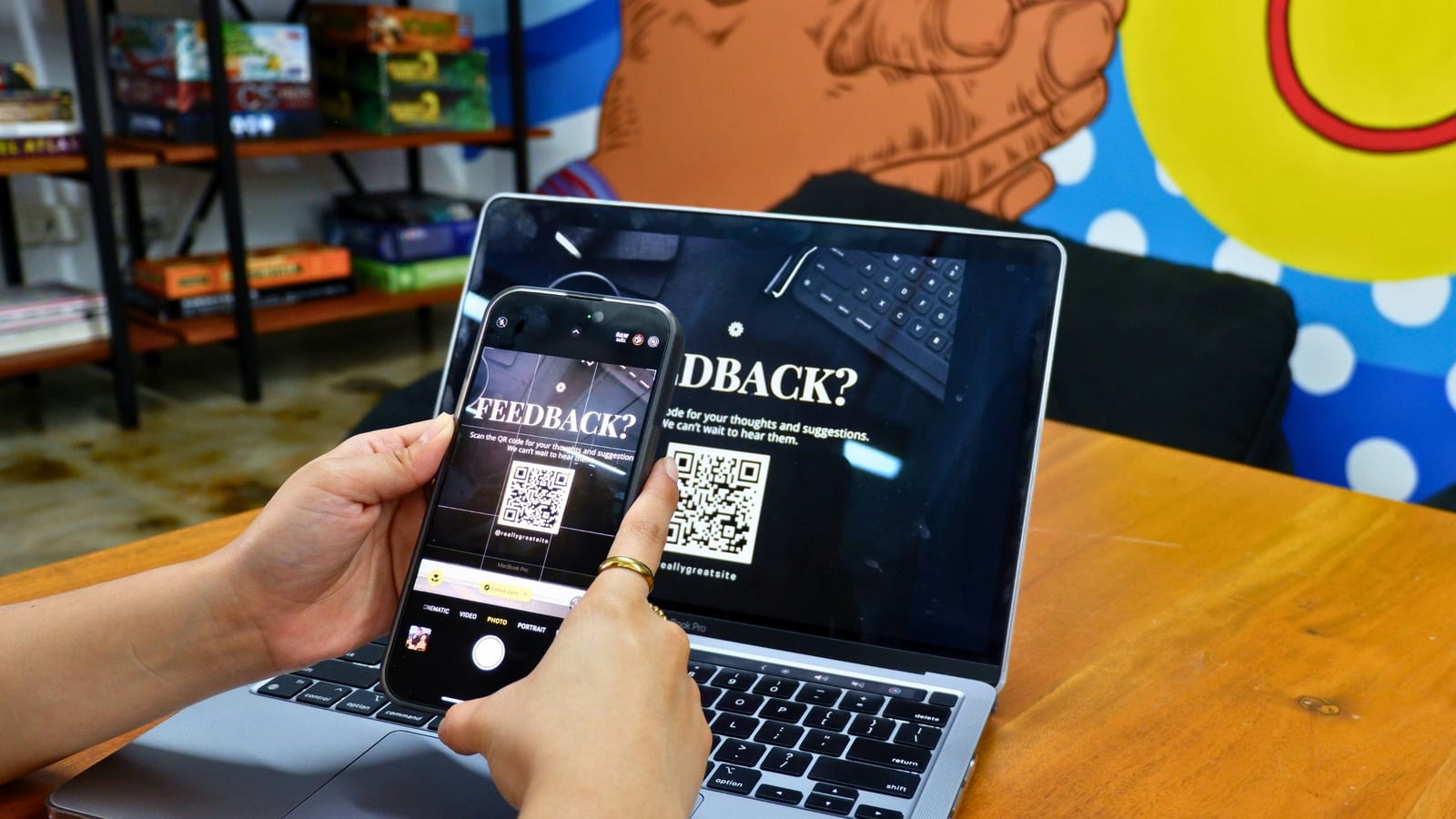
The door is the first thing your guests experience, and at a small event it's often the organizer standing there with a clipboard. QR code check-in replaces the clipboard with your phone: each guest shows a code, you scan it, and you know straight away whether the ticket is real and whether it has already been used. Here's how it works and how to set up a quick, friendly entrance.
How QR code check-in works
When someone buys a ticket, they get a unique code for each ticket, shown as a QR code. At the door you scan it with your phone's camera. The scan checks the code against your guest list and marks that ticket as checked in.
That gives you three things a paper list can't:
- Each ticket gets in once. A screenshot forwarded to a friend won't work a second time, because the ticket is already marked as used.
- No names to look up. You don't have to find "Sam" among three Sams on a printed list.
- A live record. Your guest list shows who has arrived, so you know when it's time to start.
What your guests need
On Safara One, the confirmation email has a QR code for every ticket, with the code also written out in text underneath. The same tickets are in My Bookings on the website, so a guest who can't find the email can sign in and open them there. If a phone screen is cracked or too dim to scan, you can type the code printed under the QR instead.
Bought tickets for friends? Each ticket has its own code, so one person can show all of them, or forward a ticket to each friend.
Before the event
- Send a reminder the day before. Tell guests to have their ticket ready on their phone and to turn the screen brightness up. On Safara One, the Messages tab in Manage Event emails everyone with a ticket; each event includes one message, so this is a good use for it. Add the address, the start time and anything about getting in (the side door, the second floor, where to park).
- Test the scanner at home. Open your event, tap Check in guest, and allow camera access when your phone asks. Doing it once beforehand means no surprises at the door.
- Charge your phone and check the signal. Each scan checks the ticket online, so the phone needs a data connection. If the venue's signal is weak, ask for the Wi-Fi password in advance, or bring a power bank and a phone with a different network.
- Decide who's on the door. If you're also teaching or hosting, ask a friend or co-host to handle check-in for the first 20 minutes. Add them to your event's team with Check-in only access, so they can scan on their own phone without your password. Our guide to managing an event as a team shows how.
- Invited guests check in the same way. If you sent complimentary tickets, each guest has their own QR code, and their name shows in the guest list with an Invited tag.
At the door
- Open the scanner before guests arrive. On Safara One: Manage Event → Overview or Guests → Check in guest. The Scan QR Code tab uses the camera; Enter code takes a typed code.
- Scan and greet. A good scan shows "Checked in successfully". Say hello, tell them where to go, and you're on to the next guest.
- If a code is refused, it's either a ticket for another event, and the screen will say so, or it has already been used. Ask calmly whether someone else in their group came in on it. Most of the time it's an honest mix-up between friends.
- If a guest can't find their ticket, open the Guests tab, find their name, and use the Check in button on that row.
For a group of 30 or fewer, one person with a phone is plenty. Larger events are smoother with two people scanning, or with one person scanning and another greeting and directing people inside.
Small things that make the entrance feel welcoming
- Put up a simple sign with the event name at the entrance, so people know they're in the right place.
- Open the doors 15 minutes early. A queue at the start time makes everyone late.
- Keep a short note of who hasn't arrived 10 minutes in. If it's only a couple of people, start anyway and greet them quietly when they come.
- After the event, the guest list shows who came. That's useful for a thank-you message and for planning the size of the next one.
Questions
Do I need a special scanner or app?
No. On Safara One the scanner is part of the website and works with your phone's camera in the browser. Nothing to install, for you or your guests.
Can a guest use a screenshot of their ticket?
Yes. The QR code works from a screenshot or a printout as well as from the email. Because each ticket checks in only once, a copy can't let a second person in.
What if the internet is down at the venue?
Scanning needs a connection, so plan for it: get the Wi-Fi password in advance or use mobile data. As a fallback, open the Guests tab while you still have signal; it lists every guest's name, email and ticket type, so you can check people against it by hand and mark them in later.
Does check-in work for free events too?
Yes. Free tickets get the same QR codes and check-in as paid ones. See free event ticketing for running a free event.
Setting up your event for the first time? Our guide to selling tickets online walks through the whole process, and Check guests in in the guide shows the scanner step by step.